
WRITE FOR US
ItsEasyTech
  • Social Media
    • FacebookFacebook
    • SnapchatSnapchat
    Social Media
    We ItsEasyTech will cover social media guides, tips, and how-tos here. Our content is 100% original and based on in-depth research covering Facebook to TikTok…
    Show More
    Top News
    How To Use YouTube Videos for Marketing
    How to Use YouTube Videos for your Next Marketing Campaign
    January 18, 2023
    how to remove the followers in twitter X
    How to Remove Followers on Twitter (X) Easily
    April 19, 2026
    How To Reverse a Youtube Playlist
    How To Reverse a Youtube Playlist
    January 25, 2022
    Latest News
    What Do the Eyes Emoji Mean on Snapchat Story?
    July 21, 2026
    How to Delete Twitter Followers (Step-by-Step)
    July 21, 2026
    How to Fix the Server Invite API Down Error in Discord
    July 21, 2026
    Is Telegram Anonymous? The Honest Answer Most People Don’t Expect
    June 18, 2026
  • How To
    How ToShow More
    See Mutual QFriends On Snapchat
    What Do the Eyes Emoji Mean on Snapchat Story?
    July 21, 2026
    How to Delete Twitter Followers
    How to Delete Twitter Followers (Step-by-Step)
    July 21, 2026
    What Is Website Tinting and How Does It Work?
    What Is Website Tinting and How Does It Work?
    July 21, 2026
    How to Fix the Server Invite API Down Error in Discord
    How to Fix the Server Invite API Down Error in Discord
    July 21, 2026
    how to do invert colors on chromebook
    How to Do Invert Colors on Chromebook (Shortcuts & Settings)
    June 29, 2026
  • Reviews
    ReviewsShow More
    The Best Adobe Photoshop Alternatives
    The Best Adobe Photoshop Alternatives That Don’t Slow Your PC
    July 30, 2025
    Protect Your Privacy: The Case for Anonymous Hosting 
    December 11, 2024
    Plaud Note Review Is This the Best Voice Recorder
    Plaud Note Review: Is This the Best Voice Recorder?
    July 15, 2024
    Forerunner 165 review
    Forerunner 165 Review: Garmin’S Budget OLED Running Watch
    March 4, 2024
    best ufo movies to watch
    The UFO Movies to Put on Your Must-Watch List Today
    October 30, 2023
  • Tech Updates
    Tech UpdatesShow More
    Software QA and Testing Services How to Ship Reliable Software Every Time
    Software QA and Testing Services: How to Ship Reliable Software Every Time
    July 24, 2026
    What Is Website Tinting and How Does It Work?
    What Is Website Tinting and How Does It Work?
    July 21, 2026
    Enhancing Beverage Production Efficiency Through Line Monitoring and Data Utilization
    Enhancing Beverage Production Efficiency Through Line Monitoring and Data Utilization
    July 19, 2026
    how to do invert colors on chromebook
    How to Do Invert Colors on Chromebook (Shortcuts & Settings)
    June 29, 2026
    Can You Put Aqua Affinity on a Pickaxe in Minecraft
    Can You Put Aqua Affinity on a Pickaxe in Minecraft?
    June 18, 2026
  • Business
    • Cryptocurrency
    Business
    Get the latest news and insights from the world of digital currencies, and stay informed about the financial markets with our easy-to-use tools.
    Show More
    Top News
    Trading Tools
    How to Identify and Use the Best Tools for Your Trading Needs
    March 11, 2023
    Peronal Attorney Law
    How Can a Personal Injury Attorney Protect You from Insurance Adjusters?
    May 16, 2023
    WOO Network: Unlocking the Power of Cross-Chain Liquidity
    September 4, 2023
    Latest News
    Software QA and Testing Services: How to Ship Reliable Software Every Time
    July 24, 2026
    Earning Interest on XRP: Staking and Lending Options
    July 20, 2026
    ChartUp Solana Volume Bot Across Pools and Launchpads
    July 20, 2026
    Best ETH Volume Bot: Choosing the Right Dexlift Mode
    July 20, 2026
ItsEasyTechItsEasyTech
Font ResizerAa
Search
Follow US
© Foxiz News Network. Ruby Design Company. All Rights Reserved.
ItsEasyTech > How To > How to Open the Discord Console on Windows and Mac
How ToSocial Media

How to Open the Discord Console on Windows and Mac

Alex Marz
Last updated: April 30, 2024 7:39 am
Alex Marz
Share
8 Min Read
how to open conole on discord
SHARE

Are you a big fan of Discord? Want to dive deeper into its features? You’re in luck! Discovering the Discord console can open up a whole new world of possibilities. Whether you’re on Windows or Mac, accessing this hidden toolkit is easier than you think. 

In this guide, we’ll show you how to unlock the console and make the most out of Discord’s customization options. With just a few simple steps, you’ll be able to tailor Discord to suit your preferences perfectly. Ready to unleash the full potential of Discord on your desktop? 

Contents
  • What Is the Discord Console?
  • How to Open the Discord Console on Windows
    • Step 1: Enable Developer Mode
    • Step 2: Open the Console
      • Additional Details
  • How to Open the Discord Console on Mac
    • Step 1: Enable the Developer Mode
    • Step 2: Open the Console
  • How to Troubleshoot Opening the Discord Console
    • Check Your Discord Version
    • Run Discord as Administrator
    • Reinstall Discord
  • Conclusion

Let’s get started!

What Is the Discord Console?

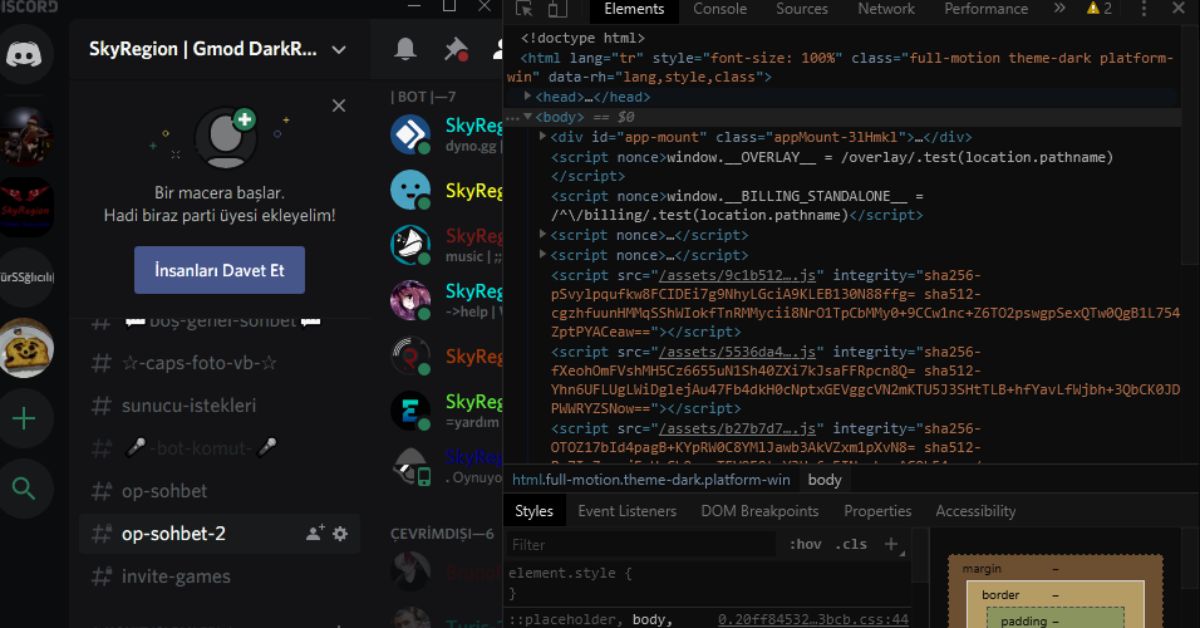
The Discord console is an advanced debugging tool integrated into the Discord app that allows you to execute commands directly. It provides a wealth of information about your Discord client, servers, and connections that can help diagnose any issues you may be experiencing.

Well, exploring its console commands is like peeking backstage at a magic show. It helps you understand how things really work. Plus, if you ever have trouble with connections or servers, knowing these commands can save the day!
discord console

How to Open the Discord Console on Windows

To open the Discord console on Windows, you will need to access your Discord settings and enable developer mode. This will allow you to utilize debugging tools and access the console.

Step 1: Enable Developer Mode

First, you will need to enable developer mode in the Discord app. To do so, open the Discord app and select “User Settings” (the gear icon next to your profile picture). Select “Appearance” from the left sidebar, then scroll down to find the “Developer Mode” toggle. Turn on “Developer Mode”, then click “OK” to save the settings.

Step 2: Open the Console

Once developer mode is enabled, you can open the Discord console. To open the console, press Ctrl+Shift+I on your keyboard. This will open the Developer Tools panel. Select the “Console” tab at the top of the panel. This is the Discord console, where you can enter debug commands and view debug logs.

The console provides access to the internal Webview used by Discord to render the client app. You can run JavaScript code, view logs, set breakpoints, and more. Some useful commands for the console include:

  • webview.sendInputMessage({type: “keyPress”, text: “Enter”}) – Simulates pressing the Enter key
  • webview.reload() – Reloads the current webview
  • webview.getURL() – Gets the current URL of the webview
  • console.log(someVariable) – Prints someVariable to the console logs

Additional Details

The Discord console provides a useful window into how the Discord app works under the hood. While the console is not officially supported and mainly used by developers, enabling it can provide more technical users with helpful debugging tools and a way to better understand the Discord client. However, use the console at your own risk, as any changes made could potentially disrupt your Discord app.

More Read

How to Fix Twitter (X) Links Not Embedding On Discord

How to Open the Discord Console on Mac

Once you have Discord installed on your Mac, accessing the Discord console is a straightforward process. The console allows you to troubleshoot issues, view debugging information, and access experimental features on Discord’s desktop app.

Step 1: Enable the Developer Mode

The first step to opening the Discord console is enabling the Developer Mode. To do this, open the Discord desktop app and select “Preferences” from the Discord menu. Then check the box next to “Enable Developer Mode” at the bottom of the preferences window.

Step 2: Open the Console

With Developer Mode enabled, the console can now be accessed. To open the console, press “Command+Option+I” on your keyboard. This keyboard shortcut will open the console window.

Alternatively, you can open the console from the Discord menu. Select “View” from the menu, then choose “Toggle Developer Tools”. This will also open the console window.

How to Troubleshoot Opening the Discord Console

If you are encountering issues opening the Discord console on your Windows or Mac device, there are a few steps you can take to troubleshoot and resolve the problem.

Check Your Discord Version

To open the Discord console, you must be running Discord version 0.0.306 or higher. Open Discord and select “About Discord” from the menu. Check the version number listed there. If it is below 0.0.306, you will need to manually update Discord to the latest version. Updating Discord may require an uninstall of your current version before installing the latest update.

Run Discord as Administrator

If updating Discord does not resolve the issue, you may need to run Discord as an administrator. Close Discord completely. Then, locate the Discord shortcut on your desktop or in the start menu. Right-click the shortcut and select “Run as administrator.” This will open Discord with elevated permissions, which may allow the console to open properly.

Reinstall Discord

As a last resort, you may need to uninstall Discord completely and reinstall the latest version. Make sure Discord is closed on your device. Then, open the Control Panel and select “Uninstall a program.” Locate Discord in the list of installed programs and select “Uninstall.” Follow the prompts to uninstall Discord.

Next, download the latest version of Discord from the official Discord website. Double click the installation file and follow the prompts to install Discord. Once the installation is complete, try opening the Discord console. The fresh install may resolve any software issues preventing the console from opening.

If the console still will not open after trying the steps above, you may need to submit a support ticket to the Discord team for further help. They can review details about your specific Discord install and device to determine why the console is not functioning properly. With their support, you should be able to get the Discord console opening again on your Windows or Mac computer.

Conclusion

Opening the Discord console allows you to access debugging tools and advanced configuration options that are not available through the standard Discord interface. With some careful tweaking, you can customize Discord’s performance and appearance to suit your needs. 

Just be sure to back up any files before making major changes. For most users, the default settings are perfectly fine, but for those who want more control, the console provides that access. While the default settings work well for most, the console is a goldmine for those seeking more control.


Similar Posts

What Do the Eyes Emoji Mean on Snapchat Story?
How to Delete Twitter Followers (Step-by-Step)
What Is Website Tinting and How Does It Work?
Share This Article
Facebook Whatsapp Whatsapp Email Print
ByAlex Marz
CEO Of ItsEasyTech - A Real Newbie Learning To Be A Successful Tech Guide. Loves Tech And Gadgets.

Read More

Armadillo Spawn Rate in Minecraft
July 21, 2026
Township Cheat Codes, Promo Codes & Secrets
July 16, 2026
Software QA and Testing Services How to Ship Reliable Software Every Time
Software QA and Testing Services: How to Ship Reliable Software Every Time
July 24, 2026
What Is Website Tinting and How Does It Work?
July 21, 2026
Enhancing Beverage Production Efficiency Through Line Monitoring and Data Utilization
July 19, 2026
how to do invert colors on chromebook
How to Do Invert Colors on Chromebook (Shortcuts & Settings)
June 29, 2026
Cryptocurrency

Earning Interest on XRP: Staking and Lending Options

Earning Interest on XRP Staking and Lending Options

XRP has come a long way from being just a fast payment token. More holders are now looking at ways to put their XRP to work — generating passive income…

Red Eliot
July 20, 2026

Your may also like!

Best Study Apps for Students

6 Best Study Apps for Students in 2026

Alex Marz
April 23, 2026
5 Best Apple Carplay Apps To Use

5 Best Apple Carplay Apps To Use in 2026

Alex Marz
April 20, 2026
best RARBG Torrent Alternative Sites

10 Best RARBG Torrent Alternative Sites in 2026

Alex Marz
April 11, 2026

Always Stay Up to Date

Subscribe to our Newsletter for Daily Updated Tech Contents!

Find us on Social Media

Facebook Pinterest X-twitter Youtube

© 2026 | ITSEASYTECH.COM. All Rights Reserved.

ItsEasyTech

More from ItsEasyTech

  • About Us
  • Disclamier
  • Privacy & Cookie Policy
  • Terms and Condition
  • Write For Us
Welcome Back!

Sign in to your account

Username or Email Address
Password

Lost your password?