
WRITE FOR US
ItsEasyTech
  • Social Media
    • FacebookFacebook
    • SnapchatSnapchat
    Social Media
    We ItsEasyTech will cover social media guides, tips, and how-tos here. Our content is 100% original and based on in-depth research covering Facebook to TikTok…
    Show More
    Top News
    You to subs
    How to Boost Instagram with You to subs?
    June 19, 2023
    Is Telegram Anonymous
    Is Telegram Anonymous? The Honest Answer Most People Don’t Expect
    June 18, 2026
    YouTube Music
    How To Play Youtube Music In Background Without Premium
    April 11, 2026
    Latest News
    Is Telegram Anonymous? The Honest Answer Most People Don’t Expect
    June 18, 2026
    How to Record a WhatsApp Call on Android
    June 1, 2026
    How Social Media Insights Can Transform Your Paid Search Strategy
    May 20, 2026
    How to Record a WhatsApp Call on Android & iOS
    April 20, 2026
  • How To
    How ToShow More
    how to do invert colors on chromebook
    How to Do Invert Colors on Chromebook (Shortcuts & Settings)
    June 29, 2026
    How to Message in WhatsApp Without Saving Number (3 Quick Tricks)
    How to Message in WhatsApp Without Saving Number (3 Quick Tricks) 
    June 29, 2026
    What Do Armadillos Eat in Minecraft
    What Do Armadillos Eat in Minecraft (And Why It Matters)
    June 18, 2026
    How to Set Spawn Point in Minecraft PC
    How to Set Spawn Point in Minecraft PC (Easy Steps)
    June 18, 2026
    How to Turn On Keep Inventory in Minecraft Java
    How to Turn On Keep Inventory in Minecraft Java
    June 18, 2026
  • Reviews
    ReviewsShow More
    The Best Adobe Photoshop Alternatives
    The Best Adobe Photoshop Alternatives That Don’t Slow Your PC
    July 30, 2025
    Protect Your Privacy: The Case for Anonymous Hosting 
    December 11, 2024
    Plaud Note Review Is This the Best Voice Recorder
    Plaud Note Review: Is This the Best Voice Recorder?
    July 15, 2024
    Forerunner 165 review
    Forerunner 165 Review: Garmin’S Budget OLED Running Watch
    March 4, 2024
    best ufo movies to watch
    The UFO Movies to Put on Your Must-Watch List Today
    October 30, 2023
  • Tech Updates
    Tech UpdatesShow More
    how to do invert colors on chromebook
    How to Do Invert Colors on Chromebook (Shortcuts & Settings)
    June 29, 2026
    Can You Put Aqua Affinity on a Pickaxe in Minecraft
    Can You Put Aqua Affinity on a Pickaxe in Minecraft?
    June 18, 2026
    best matchmaking apps for couples
    Finding the Right Professional Matchmaking Services in Los Angeles
    June 18, 2026
    What Do Armadillos Eat in Minecraft
    What Do Armadillos Eat in Minecraft (And Why It Matters)
    June 18, 2026
    Is Telegram Anonymous
    Is Telegram Anonymous? The Honest Answer Most People Don’t Expect
    June 18, 2026
  • Business
    • Cryptocurrency
    Business
    Get the latest news and insights from the world of digital currencies, and stay informed about the financial markets with our easy-to-use tools.
    Show More
    Top News
    Tech Problems solutions for remote workers
    5 Tech Problems / Solutions For Remote Workers
    May 18, 2023
    All crypto events in one place Why waste time subscribing to multiple sources
    All crypto events in one place: Why waste time subscribing to multiple sources?
    April 22, 2025
    crypto gaming
    Rollercoin: Compete against friends to mine bitcoins
    January 16, 2024
    Latest News
    Safety Management Systems: When the Program Exists but the System Does Not
    June 26, 2026
    Top Skills Every Educational Leader Needs in Today’s Schools
    May 31, 2026
    How Australian Businesses Are Unifying Their Cloud Data Strategies
    May 23, 2026
    A Diet for the Neocortex: How to Survive in the Age of Interface Abundance
    May 18, 2026
ItsEasyTechItsEasyTech
Font ResizerAa
Search
Follow US
© Foxiz News Network. Ruby Design Company. All Rights Reserved.
ItsEasyTech > How To > How to Do Invert Colors on Chromebook (Shortcuts & Settings)
How ToTech Updates

How to Do Invert Colors on Chromebook (Shortcuts & Settings)

Alex Marz
Last updated: June 29, 2026 12:34 pm
Alex Marz
Share
6 Min Read
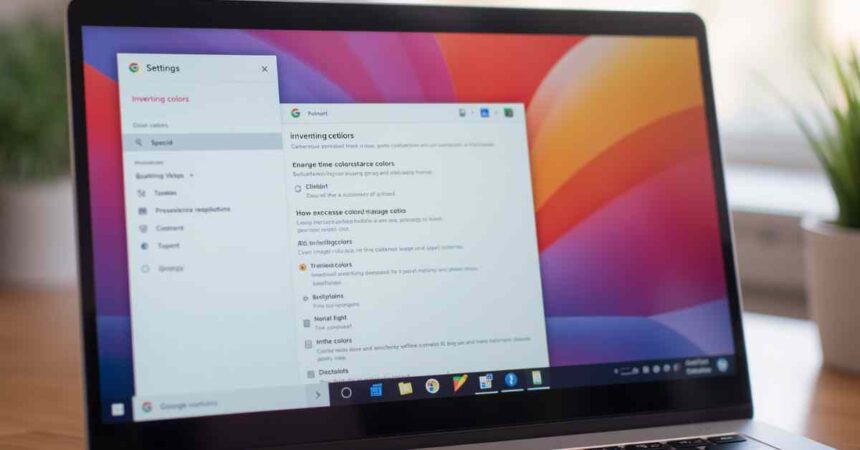
how to do invert colors on chromebook
SHARE

Staring at a white screen late at night is a fast track to a massive headache. Even if you turn your screen brightness all the way down, a lot of websites still feel like you are staring directly into a flashlight.

If you are trying to figure out how to do invert colors on chromebook, you are probably looking for immediate eye relief.

Maybe you have light sensitivity, or maybe you just want a foolproof way to force every single website into a makeshift dark mode. The good news is that ChromeOS has this feature baked right into the system. You do not need to download any sketchy extensions to make it work.

Here is exactly how to invert your screen colors in seconds on Chromebook, plus a few tips on when to actually use it.

Why use color inversion instead of standard dark mode?

You might be wondering why you would bother inverting your colors when you can just turn on dark mode. The reality is that dark mode is incredibly inconsistent.

When you enable standard dark mode, it only applies to apps and websites that actively support it. You will be reading a dark webpage, click a link, and suddenly get blasted by a bright white background because that specific site does not have a dark theme.

Color inversion is different. It is a system-wide override. It forcefully takes every single pixel on your screen and flips it to the exact opposite color. White becomes black, light gray becomes dark gray, and bright blue turns into a muted orange. It guarantees that you will never be surprised by a bright screen again.

How to do invert colors on Chromebook using a keyboard shortcut

This is the absolute fastest way to flip your screen. You do not even need to open a menu.

Google built a dedicated high-contrast keyboard shortcut into every Chromebook specifically for this purpose.

  1. Locate the Search key. This is the key on the far left side of your keyboard that has a small magnifying glass icon on it (right where the Caps Lock key normally lives).
  2. Press the combo. Press and hold the Ctrl key and the Search key at the same time, then tap the letter H.
  3. Watch the flip. Your screen will instantly invert.

If you want to turn it off and go back to normal, just hit that exact same Ctrl + Search + H combination again. It acts as a quick toggle switch you can hit anytime.

Where is the permanent toggle in the quick settings menu?

If you hate remembering keyboard shortcuts, you can easily pin the color inversion button right to your desktop taskbar. This gives you a simple, clickable button you can use with your mouse or trackpad.

Here is how to set up the on-screen toggle:

  1. Click the clock Look at the bottom right corner of your screen and click on the time to open your Quick Settings panel.
  2. Open Accessibility. Look for the gear icon (Settings), click it, and scroll down to the “Accessibility” tab on the left-hand menu.
  3. Toggle High Contrast. Under the “Display” section, turn on the switch labeled “Use high contrast mode.”

To make this even easier in the future, you can toggle on “Show accessibility options in Quick Settings.” This will permanently place a little accessibility icon next to your clock. You can just click that icon to turn color inversion on or off without opening the full settings app.

What happens to photos and videos when colors are inverted?

This is the one major catch you need to know about. ChromeOS uses a “classic” inversion method, which means it blindly flips every single color on the screen.

When you invert a white background, it turns into a nice, easy-to-read black background. But when you look at a photograph or a YouTube video, it will look like a creepy photo negative. Human faces will look blue, and shadows will look glowing white.

Because Chromebooks do not currently have a “smart invert” feature that ignores media, you will not want to leave this setting on 24/7. That is exactly why learning the Ctrl + Search + H shortcut is so useful. You can easily turn the inversion on when you are reading long articles, and instantly snap it back off when you want to look at a photo.


Similar Posts

How to Message in WhatsApp Without Saving Number (3 Quick Tricks) 
Can You Put Aqua Affinity on a Pickaxe in Minecraft?
Finding the Right Professional Matchmaking Services in Los Angeles
Share This Article
Facebook Whatsapp Whatsapp Email Print
ByAlex Marz
CEO Of ItsEasyTech - A Real Newbie Learning To Be A Successful Tech Guide. Loves Tech And Gadgets.

Read More

What Are the Best Seeds for Minecraft Villages? (Top Spawns)
June 29, 2026
What Do Armadillos Eat in Minecraft (And Why It Matters)
June 18, 2026
how to do invert colors on chromebook
How to Do Invert Colors on Chromebook (Shortcuts & Settings)
June 29, 2026
Can You Put Aqua Affinity on a Pickaxe in Minecraft
Can You Put Aqua Affinity on a Pickaxe in Minecraft?
June 18, 2026
best matchmaking apps for couples
Finding the Right Professional Matchmaking Services in Los Angeles
June 18, 2026
What Do Armadillos Eat in Minecraft
What Do Armadillos Eat in Minecraft (And Why It Matters)
June 18, 2026
Finance

Safety Management Systems: When the Program Exists but the System Does Not

Safety Management Systems

Most organizations have the policies, the training, and the records. What they often lack is a way to make those pieces work as one. A safety program can look complete…

Red Eliot
June 26, 2026

Your may also like!

5 Best Apple Carplay Apps To Use

5 Best Apple Carplay Apps To Use in 2026

Alex Marz
April 20, 2026
Best VPNs to use

6 Best VPNs To Use in 2025 (Features, Pros, Cons)

Express VPN
best RARBG Torrent Alternative Sites

10 Best RARBG Torrent Alternative Sites in 2026

Alex Marz
April 11, 2026

Always Stay Up to Date

Subscribe to our Newsletter for Daily Updated Tech Contents!

Find us on Social Media

Facebook Pinterest X-twitter Youtube

© 2026 | ITSEASYTECH.COM. All Rights Reserved.

ItsEasyTech

More from ItsEasyTech

  • About Us
  • Disclamier
  • Privacy & Cookie Policy
  • Terms and Condition
  • Write For Us
Welcome Back!

Sign in to your account

Username or Email Address
Password

Lost your password?