

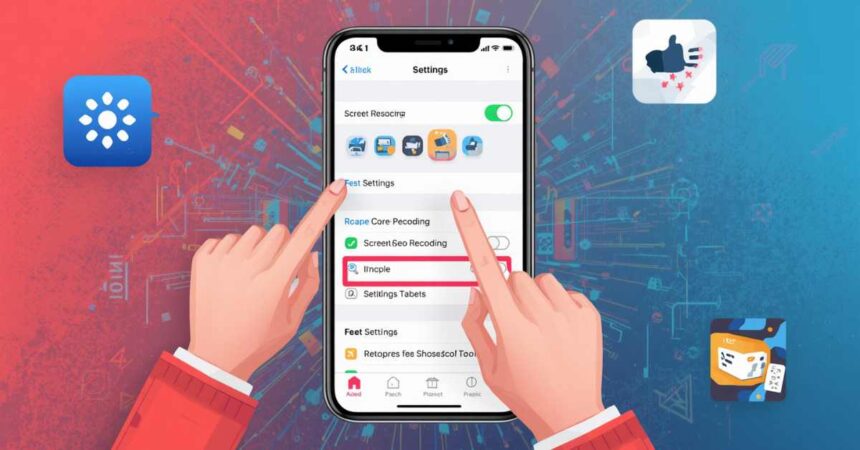
Quick answer: To Enable Screen Recording on iPhone, go to your iPhone Settings, tap “Control Center,” and tap the green plus icon next to “Screen Recording.” Then, swipe down from the top right of your screen to open the Control Center and press the gray record button.
Capturing what happens on your mobile screen is highly useful. You might want to save a video clip, show a bug to a support team, or guide a family member through a new app. Apple includes a built-in tool to capture your screen, meaning you do not need to download third-party applications.
This guide will show you the exact steps to capture your screen video quickly and easily.
Why Should You Enable Screen Recording on iPhone?
Recording your screen captures exactly what you see and hear on your device.
This function is helpful for creating tutorials, saving live events, or sharing gameplay. Apple introduced this built-in feature in iOS 11, making it a standard tool for all modern Apple mobile devices.
By adding this tool to your Control Center, you gain one-tap access to video capture at any time.
The basic steps for how to enable screen recording on iPhone
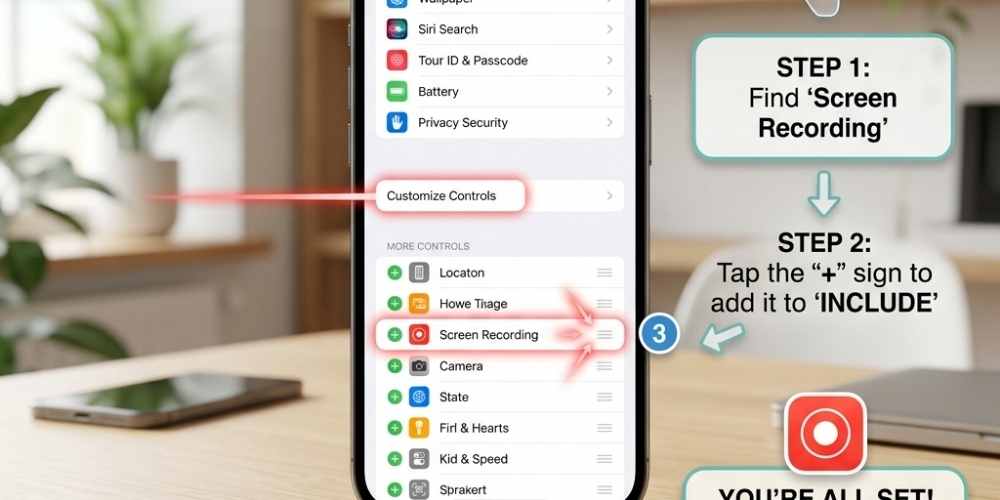
Before you can record, you must add the tool to your quick-access menu. Follow these specific steps:
- Open the Settings app on your Apple device.
- Scroll down and tap on Control Center.
- Scroll down to the “More Controls” list.
- Find the option labeled Screen Recording.
- Tap the green plus sign (+) next to it.
The feature is now moved to the “Included Controls” section. You can now close the Settings app.
How to enable screen recording on iPhone with your microphone on
Sometimes, you want to record your voice while capturing the video. The default setting only records the internal system sound. To add your voiceover:
- Open your Control Center (swipe down from the top right corner on newer models, or swipe up from the bottom on models with a Home button).
- Press and hold the gray record button.
- A new menu will appear on your screen.
- Tap the Microphone icon at the bottom so it turns red and says “Microphone On.”
- Tap Start Recording.
Your device will count down from three before it begins capturing both the screen visuals and your external voice [link].
What to do if you cannot figure out how to enable screen recording on iPhone
If you follow the steps above but the recording fails, your device might have restrictions turned on. Parents often use Apple’s Screen Time feature to block specific actions.
To fix this, go to Settings > Screen Time > Content & Privacy Restrictions. Tap on Content Restrictions and scroll down to the Game Center section. Ensure that Screen Recording is set to “Allow.” If it is blocked, the button in your Control Center will appear grayed out and unresponsive.
After learning how to enable screen recording on iPhone: Editing your video
Once you finish capturing your video, tap the red clock at the top of your screen and select “Stop.” The video automatically saves to your Photos app.
Open the Photos app and select your new video. Tap “Edit” in the top right corner to trim the start or end of the clip.
Drag the yellow sliders on the timeline at the bottom to remove the parts where you are opening or closing the Control Center. Finally, tap “Done” and save the video.
Frequently Asked Questions
Does screen recording capture audio on an Apple device?
Yes. By default, it captures internal system audio, such as music or app sounds. You can also turn on the microphone to record external audio by pressing and holding the record button in the Control Center.
Where do my screen recordings go?
All captured videos save automatically to your default Photos app. You can find them in your main library or under the “Media Types” section labeled “Screen Recordings.”
Is there a time limit for capturing my screen?
No, Apple does not impose a strict time limit. The only limit is the amount of free storage space available on your device. If your storage fills up, the recording will stop automatically.
Can I record streaming apps like Netflix?
No. Most streaming services use digital rights management (DRM) protection. If you try to capture their content, the resulting video will show a black screen to prevent copyright infringement.