

Are your kids spending too much time on their smartphones? Are you worried about the disturbing effects of smartphones on your kids? And are you looking for the best free android apps to monitor your kid’s smartphone? If yes, then stay tuned with us.
Android is well-liked and the most used mobile Operating System in the world. Since it is an open-source System Software, Most smartphone manufacturers use it on their smartphones—more than 80% of smartphones in the world run on Android OS.
Since Android’s source code is available free of cost, Everyone can build an Android app. As a result, millions of applications are available on the Google Play Store. Also, Android users can install applications from other sources.
Although Google’s android is excelling in every aspect, it does not have strict rules and policies like its main competitor Apple’s iOS. And this makes it more vulnerable to viruses and attacks.
But when it comes to kids, it’s not only about the viruses and attacks causing them problems. The use of smartphones has resulted in many physical and mental health problems. And in recent years, the condition is getting even worse.
To control the situation, parents and guardians consider the use of parental control apps. In many ways, these monitoring apps have helped parents keep control of their kids. So let’s understand more about these controlling apps.
What Are Parental Controls?
Parental controls are features included in many devices such as Televisions(TV), Computers, Smartphones, and Gaming consoles. And this enables parents to monitor and control or restrict contents for their kids’ safety.
And parental control applications are specially designed for parents to keep track of their kids’ activity and restrict unwanted contents online. So, let’s dig into the #10 best free applications available for android that enables you to monitor your kids.
#10 Top Free Parental Control Applications for Android Smartphones.
While talking about free parental Control applications for android Smartphones, Various applications can come to your mind. But choosing the most trusted and safest control app should always be your primary concern.
So for your comfort, we have hand-picked some of the most authentic applications available on the market that can fulfill most of your requirements.
1. fenced.ai
fenced.ai is one of the best and widely trusted parental controls out there. It has a free version available, and if you want some more advanced features, you can buy the paid version of the software.
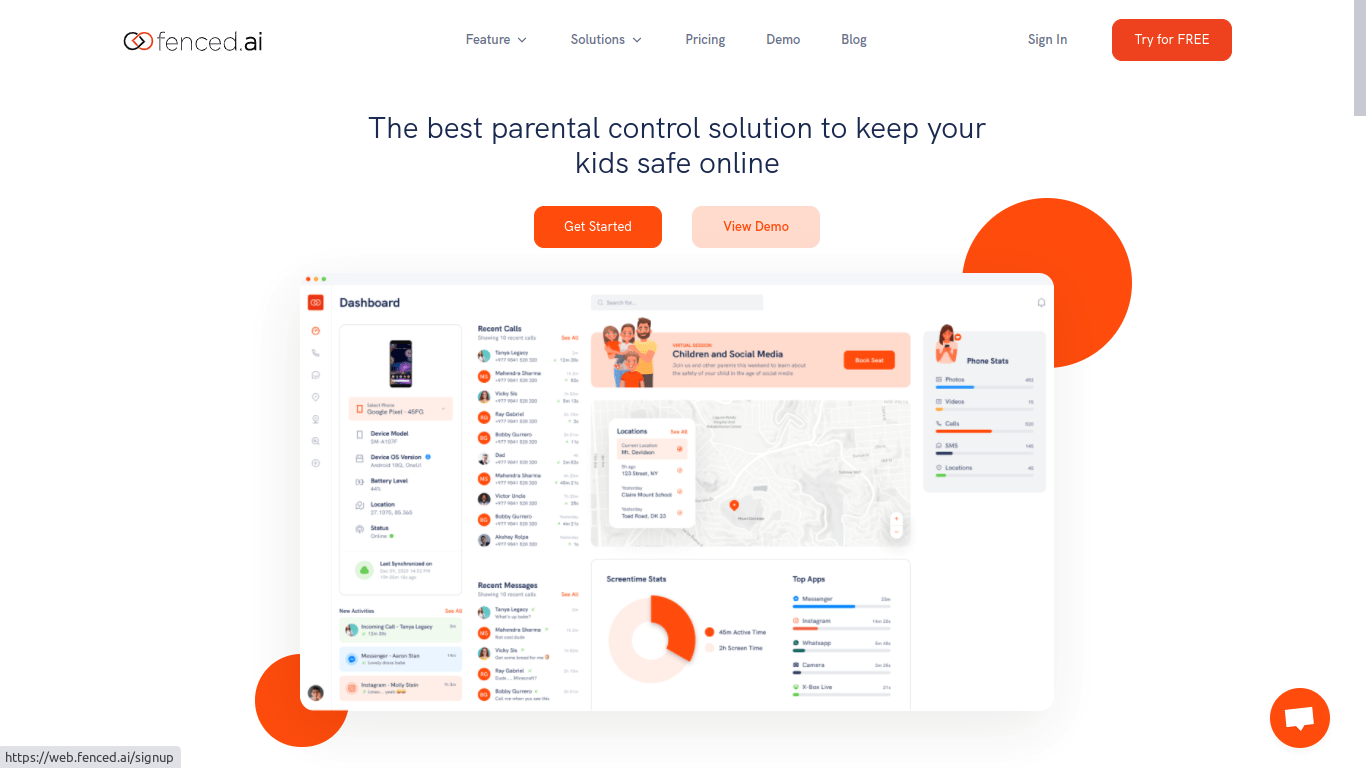
Using this software, you can pay according to the number of devices you want to monitor. The pricing of fenced.ai is very much flexible, and it does not take any hidden charges.
Instructions On How To Use fenced.ai
- Visit fenced.ai official website and click on a try for free on the homepage.
- Sign-up using your credentials and log in.
- Then on the top right, click on Download APK.
- After that, follow the installation guide given on the site.
- Finally, go to the dashboard and start monitoring.
Features Of fenced.ai
- Monitor Calls, SMS, Email, and browsing history.
- Keep track of social media like WhatsApp, Viber, Facebook, Instagram, and skype.
- Tracking Contacts, device location, and SIM location.
- Watch applications, photos, and videos.
- Records Keystrokes.
- Alerting systems like location alerts, keyword alerts, Wi-Fi change alerts, and uninstall alerts.
- Get details of your kid’s wifi usage using a Wi-Fi logger.
Pros
fenced.ai provides solutions for parents, schools, and businesses. The application delivers all the necessary features and has a decent User interface(UI). The software is easy to use and has good customer support.
And fenced.ai has better and flexible pricing than most of its competitors. Overall it is one of the best controlling apps available on the market.
Cons
The free version of this control app only supports calls and SMS tracking. To use the advanced features, you need to purchase either the basic or the premium version. Also, some features may require root.
Pricing
fenced.ai is available in 3 versions, and their pricing is listed below.
- Free Version: $0.00.
- Basic Version: $9.99 for a 1-month license.
- Premium Version : $19.99 for 1-month license.
2. Norton Family
Norton family is another great option for parents and guardians. Its developer NortonLifeLock is a highly known and trusted company that started with antivirus software development.
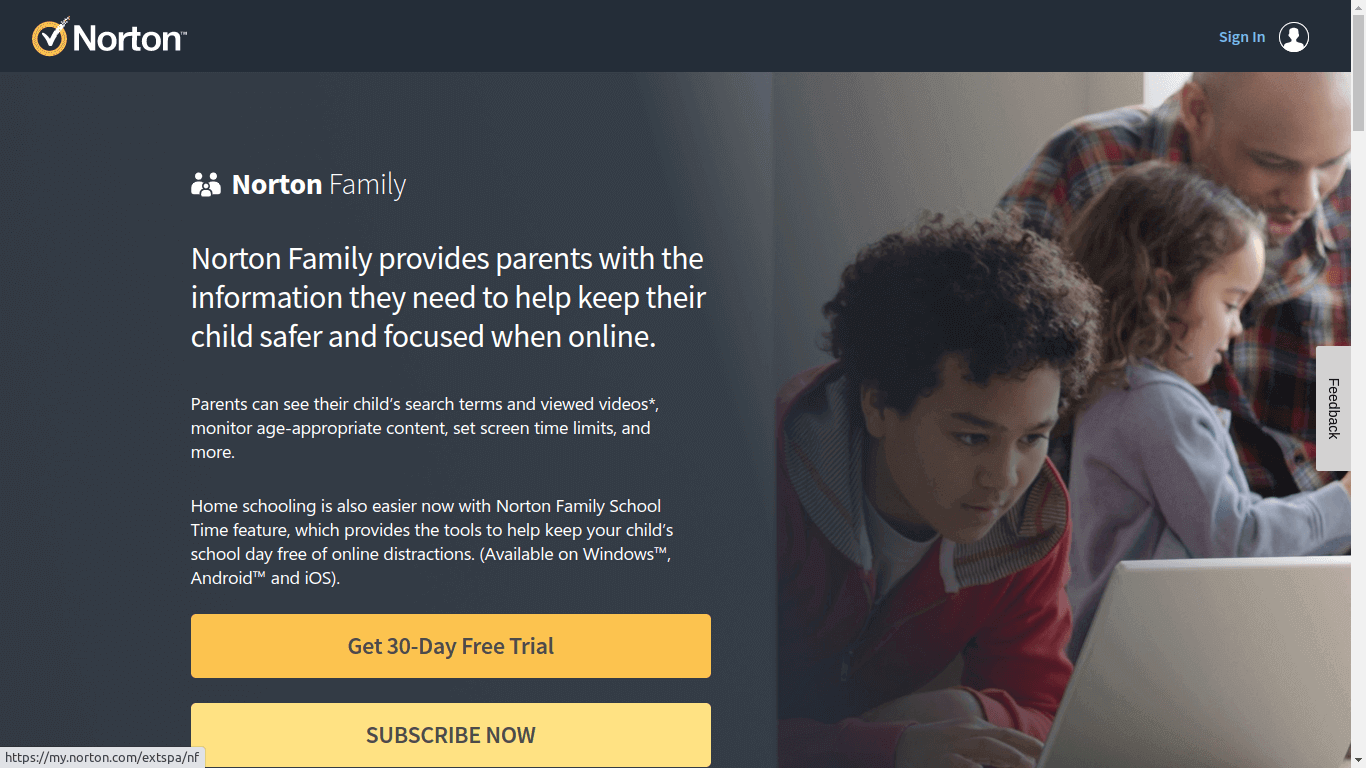 The application is available on android as well as iOS. You can try the Norton family for free for 30 days and eventually subscribe to it if you like the application.
Instructions On How To Use Norton Family
- Visit Norton Family’s official page.
- Click on Get 30 -days free trial now and create an account using your credentials.
- And then install the Norton family app on your kid’s device.
- After successful deployment, Visit the dashboard and start monitoring.
- For more detailed installation information, visit the site link.
Features
- Track browsing history and blocking unwanted sites.
- Location tracking.
- Monitoring your kid’s search.
- Setting screen time limits.
- Watch your kid’s applications and gallery.
- Instant lock feature.
- Reports your kid’s activity.
Pros
Norton family is cheaper when compared to its competitors. It has a decent User Interface(UI) and contains all the basic online supervision features.
Cons
Norton family lacks some of the advanced features. It comes with only one variant that is not suitable for schools and businesses. And the application has a 30-day trial version but is not completely free.
Pricing
It is only available in one version. And it will cost you $49.99/year.
3. Qustodio
Qustodio can be a great choice if you are looking for a complete free parental control application. The application can help parents, schools, and businesses as well.
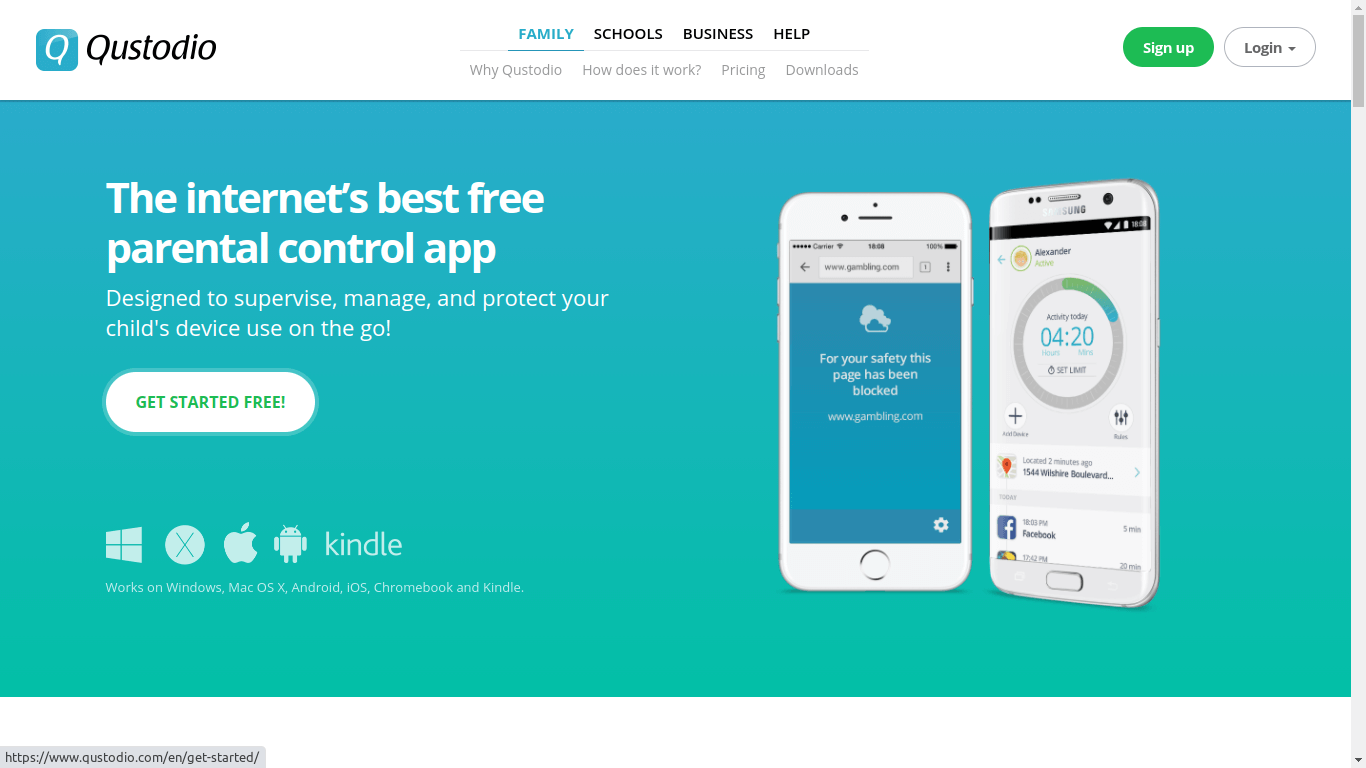
Qustodio supports a wide range of OS such as iOS, Android, Mac OS X, Windows, Chromebook, and Kindle. Because of its high compatibility, most users prefer this monitoring app.
Instructions On How To Use Qustodio
- Visit the official Qustodio website and click on Get Started Free.
- Then, Signup using your credentials and sign in.
- After that, create your profile by adding your kids and their devices.
- For a more detailed installation guide, visit the site.
- Finally, visit the dashboard and start monitoring.
Features
- Web filtering and safe search feature.
- Monitor web and search activities.
- Setting time limits.
- Keep track of social media like Facebook and Twitter.
- Location tracking.
- Watch your kid’s applications and gallery.
- Blocking applications and games.
- Panic button for high alert cases.
Pros
The free version of Qustodio provides you with many useful features that its competitors lack. The application has an easy to use and eye-catching User Interface. It is probably the best free app out of other control apps available online. And the pricing of the paid version is budget-friendly.
Cons
It does not provide a simple call and SMS tracking feature like its rival net nanny. And by using a VPN extension, users can easily bypass web monitoring.
Pricing
Qustodio free will not cost you a penny, whereas Qustodio premium comes in three different variants. The cost of the three variants is listed below.
- Small plan: $54.95/ year.
- Medium plan: $96.95/ year.
- Large plan: $137.95/ year.
4. KidLogger
Kidlogger is a free parental control compatible with most operating systems. It is one of the most used free parental control apps with over a million customers.
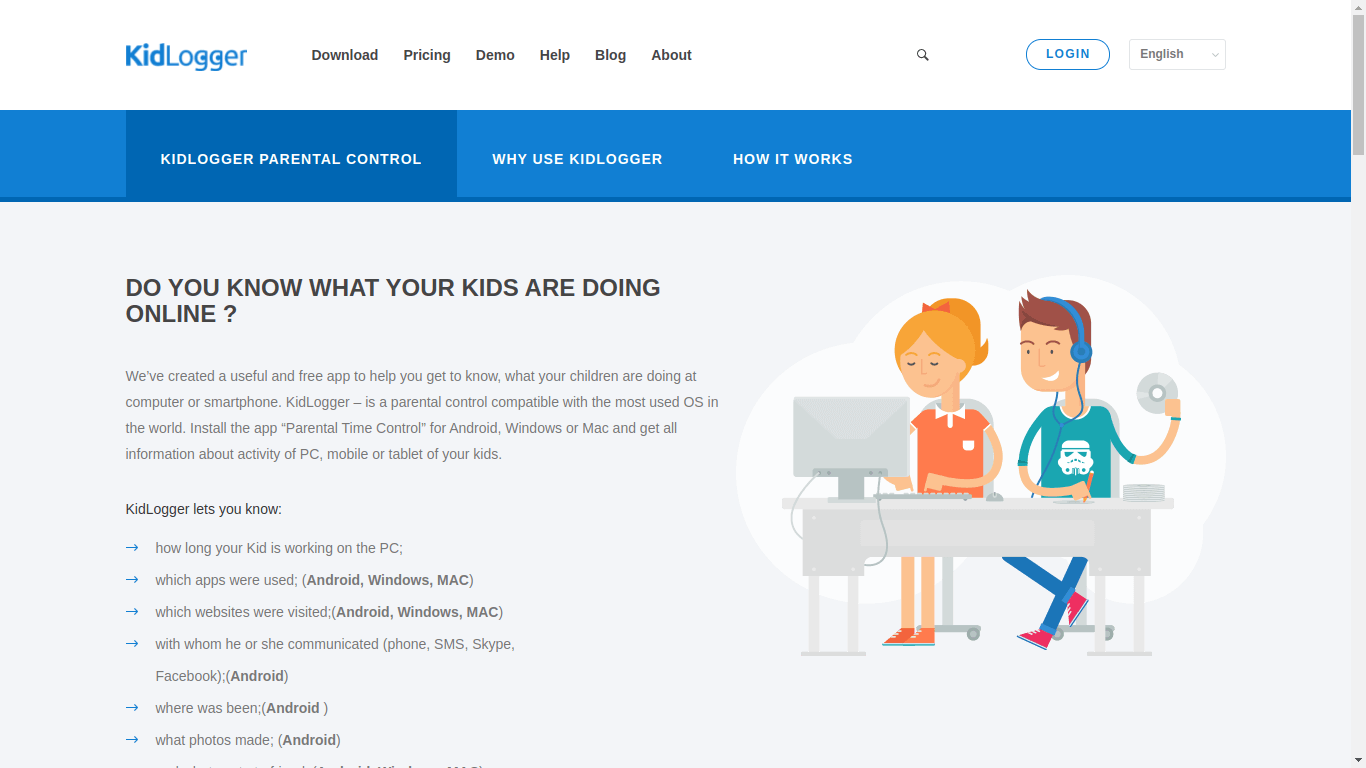
This application allows you to watch over 5devices and keep the activity records for up to 9days. It is also available in paid version if you want to use some of the most advanced features. A demo is also provided if you want to learn how to use it.
Instructions On How To Use KidLogger
- Visit the KidLogger official site and click on Get Started.
- Enter your credentials, and then you will receive an email from Kidlogger with all the required instructions.
- To know more detailed installation on your android phone, visit the site.
- After all the process, go to the dashboard and monitor your kids.
Features
- Records Keystrokes.
- Keep track of social media like Facebook, Skype, WhatsApp, Kik, and Viber.
- Take screenshots remotely.
- Location tracking.
- Watch your kid’s applications and gallery.
- Tracking and recording voice calls and SMS.
Pros
Even the free version of KidLogger contains all the necessary features. It is easy to install, and you can also use MacOS to monitor your kids’ android device.
Cons
The major concern of KidLogger is that the User Interface is not so user friendly. It is also limited to android devices and does not offer web filtering and application blocking features.
Pricing
It is available in three variants: basic, default, and professional. The pricing of each of them is listed below.
- Basic: Free.
- Default: $29/ year.
- Professional: $89/ year.
5. Kaspersky Safe Kids
Developed by one of the most trusted antivirus developers, Kaspersky safe kids can be a great option. It provides you with fast, secure, and smart monitoring. It is available in free as well as the paid version.
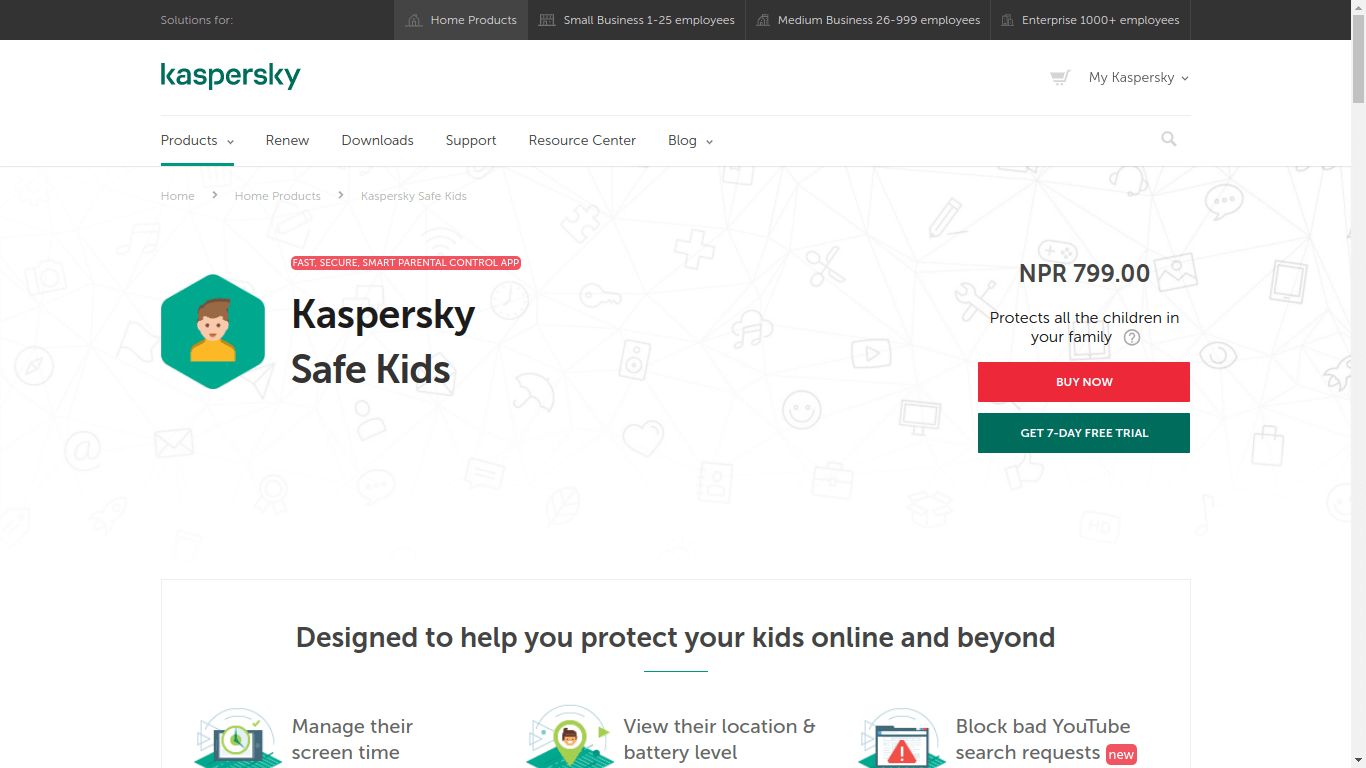
Instructions on How To Use Kaspersky Safe Kids.
- Visit the official Kaspersky safe kids site.
- Then click on Get Free Version and select the OS version you want to download.
- After the completion of the download, install the application.
- For more detailed information, visit the website.
- Finally, Via the dashboard, start monitoring.
Features
- Online content filtering.
- Safe search feature for youtube.
- Limit Application usage.
- Screen time management.
- Tracking location and battery.
- Real-time alerting feature.
Pros
Kaspersky safe kids are inexpensive and contain many features, even in the free version. It does not have device limitations, and its youtube search history tracker is just amazing.
Cons
The main disadvantage of using Kaspersky safe kids is that its paid version is not competitive. Call and SMS monitoring are only available on android devices, and there is no application control for iOS devices.
Pricing
Kaspersky safe kids free is available free, whereas Kaspersky safe kids premium will cost you around $14.99/ year.
6. Google Family Link For Parents
Google family link is a free parental control developed by Google. It allows you to help your kids browse safely online by setting proper digital ground rules and instructions. It is rated 4.1 in the google play store and 4.6 in Apple’s app store.
Instructions On How To Use Google Family Link
- Visit the official google family link site or download via google play for android and the app store for iOS.
- Install it in your device and the targeted device.
- Log in using your Google account or sign up using your credentials.
- Then you are ready to monitor via the dashboard.
Features
- Online content filtering.
- Screen time management.
- Tracking location.
- Device locking.
- Watch over their applications.
Pros
It is easy to use and free of cost and provides you with all the basic controlling features.
Cons
It does not contain various advanced features like other parental control apps available online.
Pricing
Google family link is free of cost.
7. Kuukla Parental Control
This application is best for parents looking for a simple and lightweight app to control their kids’ overuse of screen-based devices.
Instructions on How To Use Kuukla
- On your kid’s smartphone, open the google play store and download the kuukla app.
- Enter a PIN code, and you will receive a confirmation mail.
- Accept all the mandatory and optional permissions.
- Choose the feature you want to use.
- Start Using the app
Features
- Screen time management.
- Change phone’s PIN code for extra security.
- Monitor installed application.
- Block unwanted apps.
Pros
It is a very stable and lightweight app that is free of cost.
Cons
This control app does not have any advanced features and is only suitable for very young kids.
Pricing
Kuukla application is available on the Google play store and is completely Free.
8. OurPact
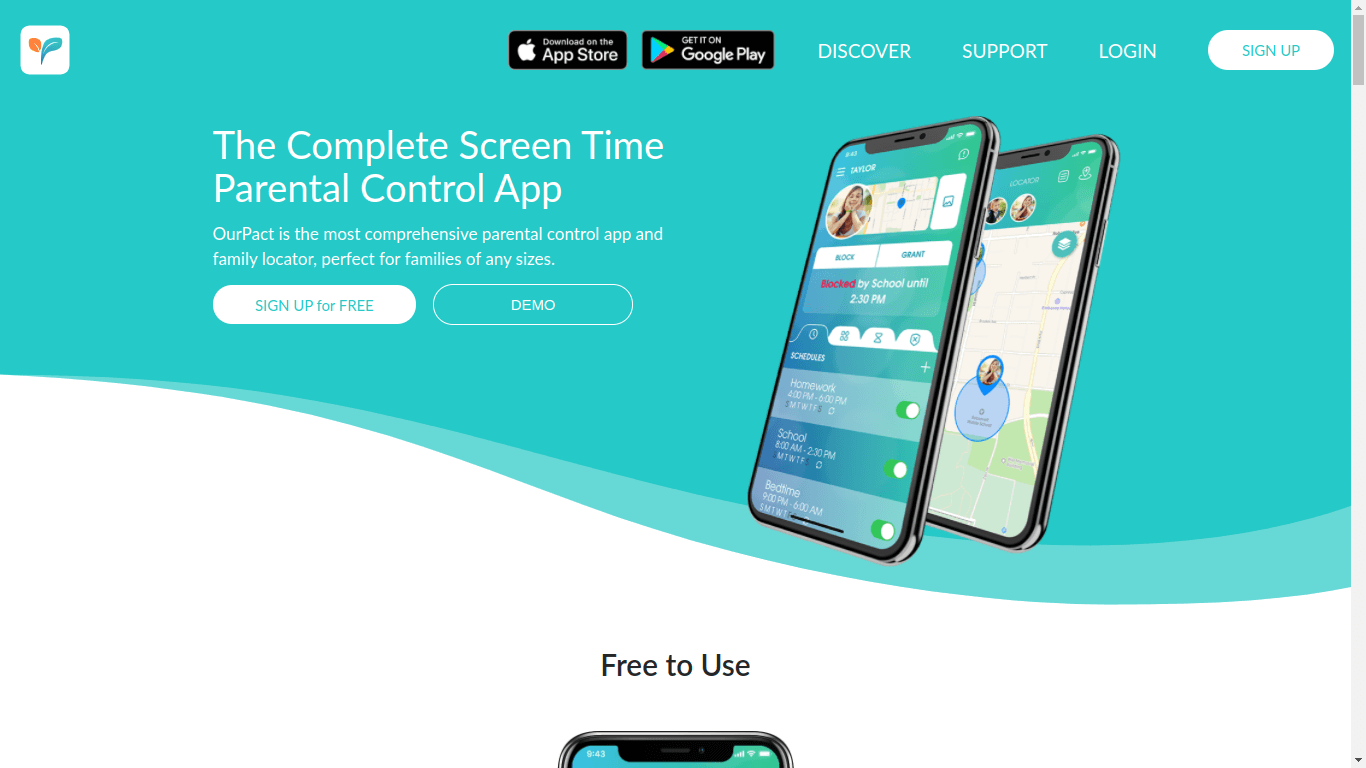
If you are looking for a simple parental control application to just schedule screen time and manual grant /block access to the internet for free, It can be the best option. Although, this monitoring app is not completely free. But when you install it, you can use these features for free.
Instructions On How To Use OurPact
- Visit the official OurPact website.
- Click on signup for free and use your credentials to create an account.
- Download and install the app on your system and pair it with your kid’s device.
- For more detailed information on the installation, visit the site.
- After that, Via the dashboard, start monitoring.
Features
- Scheduling screen time.
- Location tracking.
- Watch your kid’s applications and gallery.
- Tracking and recording voice calls and SMS.
- Web filtering.
Pros
Along with blocking apps OurPact can help you block browsers like chrome and safari if your kids use them for unwanted activities. And it has an amazing UI and is easy to use.
Cons
The free version only supports a single device, and also it has minimum features available. To use advanced features,
you need to purchase the premium versions.
Pricing
There are three versions of this application available. They are.
- Free: free.
- Premium: $6.99/ month.
- Premium+: $9.99/ month.
9. Safe lagoon
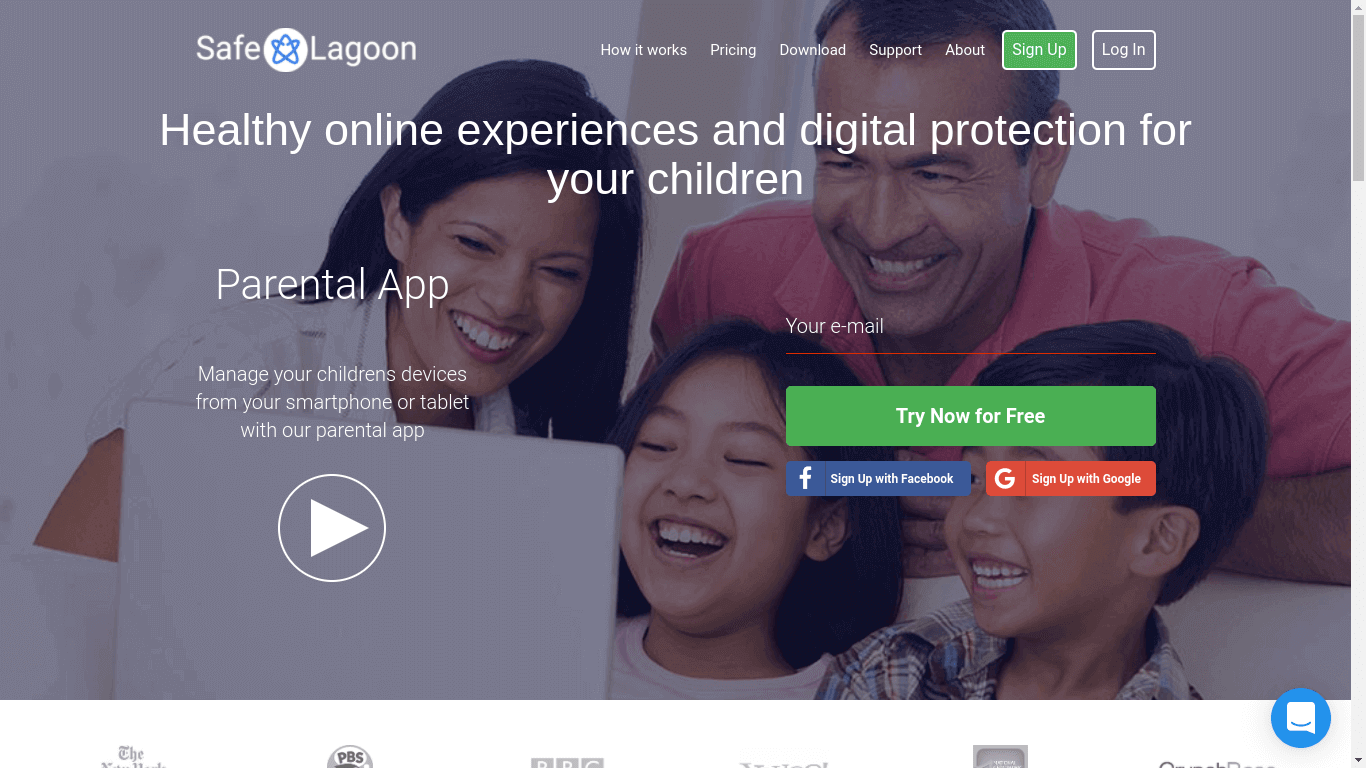
The safe lagoon is a widely used and trusted app that promotes healthy activities online. It helps parents provide digital protection and support their child’s mental and physical health. It comes with many important features that can give parents a good night’s sleep without worrying about their kids.
Instructions On How To Use Safe Lagoon
- Go to the safe lagoon official site, and click on Try Now For Free.
- Create your own account by filling up your credentials.
- Setup the app on your device and shrink it with your kid’s device with the app’s help.
- For a more detailed installation guide, visit the website.
- Go to the dashboard and start monitoring.
Features
- Block unwanted websites.
- GPS tracking.
- Keep track of social media like Facebook, Viber, WhatsApp, and others.
- Screen time management.
- Detailed reports of your kid’s activity.
Pros
The application has a lower price and contains some good features like filtering by age and free web filtering for children, social media monitoring, etc.
Cons
Some of the major features like search history, extra screen time rewards are missing. And it is not available for desktop or mac, and photos and video monitoring comes with the paid version.
Pricing
The application is available in safe lagoon free, safe lagoon premium, and safe lagoon big family. Their costs are given below.
- Safe lagoon free: free.
- Safe lagoon premium: $6.95/ month.
- Safe lagoon big family: $9.95 per month.
10. ScreenTime
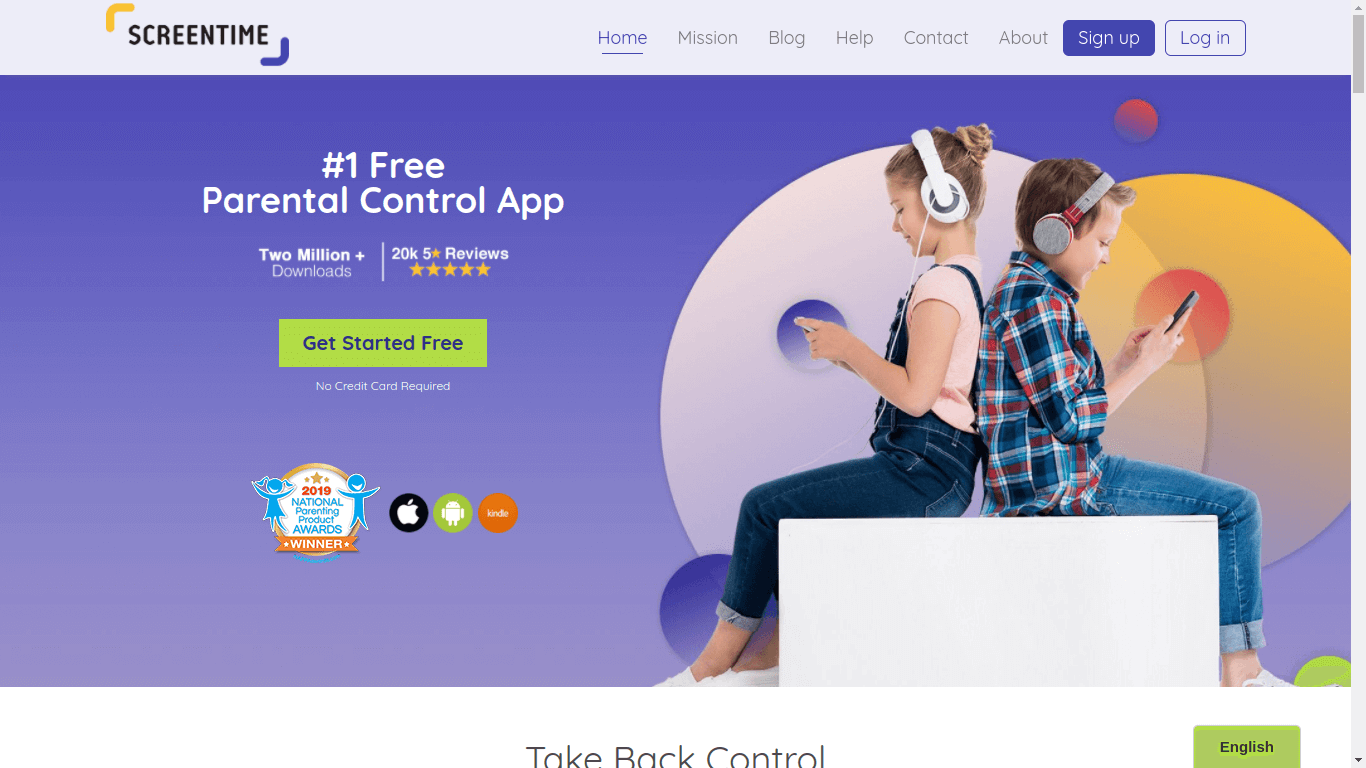
With over two million-plus downloads, screentime has been able to remain close to many parent’s hearts. ScreenTime has also won 2019 national parenting awards. The application is available for Android, iOS, and Kindle. Now let us look closely at things screentime offers.
Instructions On How To Use ScreenTime.
- Go to Screentime’s official website.
- Click on Get Started Free.
- Fill in the credentials and log in.
- Download and install the app on your device and the targeted device.
- For a more detailed installation guide, go to the website section.
- Then login to the dashboard and start monitoring.
Features
- Time limitation.
- Task manager and schedule manager.
- Web filtering.
- Location tracking.
- Watching over and blocking your kid’s applications.
- Tracking browsing history.
Pros
The application has powerful features that help parents limit their child’s internet usage. It has several functions such as time limits, application blockers, and displaying device usage reports. Overall the application performs well in managing devices remotely.
Cons
The major problem with this application is that it is not so secure. Some of the features that are available for android are missing on iOS. The application is not properly customizable according to the needs of parents.
Pricing
The application is available for free if you choose the basic version. But if you want to go premium with all the functionality, you will have to pay $49.99/ year.
FAQ Section
How Does Parental Control Work?
Parental controls shrink the targeted device with your device. On an android device, If you want to use basic features, you can simply install parental control on the targeted device and start monitoring.
If you want to use advanced features, you need the targeted device’s credentials. Parental controls applications are designed to monitor other applications and web activities. And also, It makes use of the device hardware like trackers and sensors to track targeted devices.
Can Parental Control Monitor Everything?
Although parental control allows you to monitor and control many inbuilt functions and the web, it cannot monitor every software. You can filter websites, blocking some apps, and impose time limits. But it’s not possible to watch each and everything using parental controls.
Can Parental Controls Be Misused?
The answer is yes. Although parental controls are designed for parents to ensure their kid’s safety, many people have misused them over time. That’s why you should only allow trustworthy people to use your devices.
Should Parents Control Their Kid’s Smartphones?
The answer is yes. Parents should control their kid’s phones, but they should also respect their privacy at the same time. Since kids cannot distinguish between good and bad, parents should be the ones to decide for them. By using parental controls, parents can help their kids browse safe content and ensure their safety in the current digital era.